Stop Double Bookings: APP 11 Calendar Sync for Australian Clinics
Calendar sync connects a clinic’s scheduling system to Google, Outlook, or Apple calendars so appointments update automatically in both places, cutting double bookings and admin time. The right move today: check whether your scheduling tool offers two‑way OAuth sync rather than a basic feed, and confirm your setup meets APP 11 obligations before you switch it on.
TL;DR:
Two‑way OAuth sync with field filtering provides real-time updates and keeps patient details private, unlike static iCal feeds that refresh too slowly for same-day bookings.
Properly configuring sync direction and conflict rules ensures practice management systems take precedence, preventing double bookings and resource overlaps.
Limiting shared event details to only busy or appointment labels, and continuously monitoring audit logs, helps maintain compliance with privacy regulations like APP 11.
Piloting the system with a small group for a few weeks and verifying functionality manually reduces risks and improves practitioner acceptance before full rollout.
Using OAuth rather than shared passwords and establishing clear governance rules prevents security breaches and unintended data exposure.
Table of Contents
-
What calendar sync means and the terms you’ll see in vendor docs
-
Google, Outlook, Apple, and iCal: what each integration actually gives you
What calendar sync means and the terms you’ll see in vendor docs
Calendar sync comes in three flavours, and mixing them up is the fastest way to create a scheduling mess. One‑way (push) sends bookings from your practice software out to an external calendar, like Outlook, but changes made in Outlook never flow back. Read/pull does the reverse: it watches an external calendar and blocks time in your practice system, without writing anything out. Two‑way sync does both at once, treating a change in either system as the source of truth for that event.
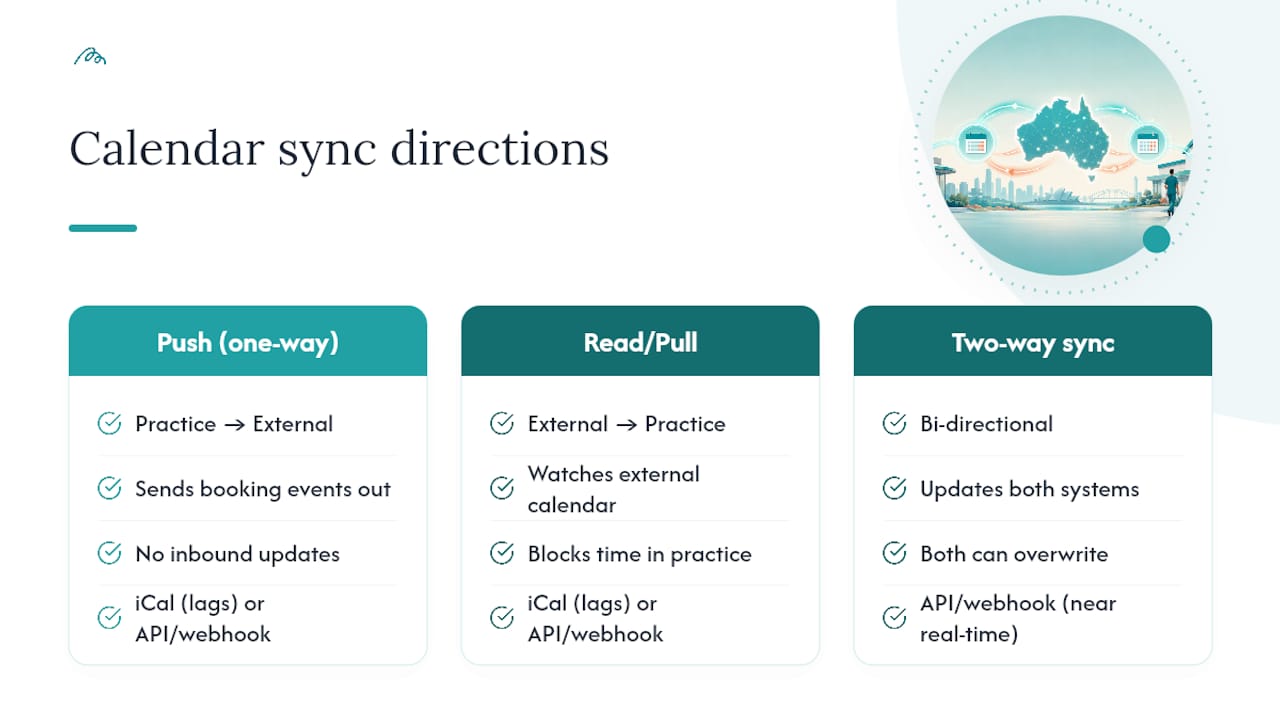
The transport layer matters just as much as the direction. An iCal feed is a static file your calendar app checks periodically, which is why it lags. An API or webhook connection pushes updates the moment something changes.
Clinics evaluating a more clinical way to model this should look at the HL7 FHIR Schedule resource, which separates a practitioner’s availability (the “schedule” and its “slots”) from the actual booked appointment. That separation is deliberate: it lets a system expose when someone is free without exposing who they’re seeing or why, which is exactly the privacy boundary most clinics need when syncing outward.
Why calendar sync matters for healthcare practices
Double bookings are the most visible symptom of poor sync, but they’re rarely the most expensive one. A practitioner who discovers a clash at 8:45am has already lost the morning’s buffer time, and the patient bumped to a later slot has already formed an opinion about the clinic’s reliability.
The bigger cost shows up in multi‑site and telehealth settings. A clinician splitting their week across two clinics, or running video consults from a home office between in‑person blocks, needs their availability to be identical everywhere it’s checked. Without sync, someone is manually re‑entering the same three hours into two or three systems, and manual re‑entry is where errors live.
Shared resources compound the problem. A consult room, an ultrasound machine, or a hoist booked through one calendar but not another gets double‑allocated, and nobody finds out until two staff members are standing in the same doorway. Poor sync also leaks privacy: an event titled “John Smith, physio, ACL follow‑up” synced onto a shared Outlook calendar is now visible to anyone with access to that calendar, well beyond the people who need to know.
How calendar sync works: a step‑by‑step setup checklist
Getting sync right is less about the technology and more about the decisions you make before you connect anything. Work through these in order:
-
Inventory every calendar in play. List each practitioner’s practice‑system calendar, personal Google or Outlook calendar, and any shared resource calendars (rooms, equipment).
-
Decide read versus write for each one. Most clinics should read personal calendars (to block busy time) but never write patient details into them.
-
Set the sync direction per calendar. Reserve full two‑way sync for calendars you control; use read‑only pull for anything personal or external.
-
Establish a conflict rule and stick to it. The safest default is clinic‑booking precedence: the practice management system wins any clash, and external calendar entries only block new bookings, they don’t override existing ones.
-
Authenticate with OAuth, not shared passwords. Most modern connectors use token‑based OAuth rather than stored credentials, and let you scope exactly what the connection can see or change.
-
Map fields carefully. Toggle off patient name and clinical notes for anything syncing to an external or shared calendar; keep only “busy” or a generic label like “Appointment.”
-
Pilot with two or three practitioners first. Backfill their existing bookings manually rather than trusting an automated backfill on day one.
-
Verify manually for the first two weeks. Check that busy blocking actually prevents double bookings, that reschedules propagate both ways, and that cancellations clear the slot everywhere.
Pro Tip: Run your pilot with the practitioners who complain loudest about double bookings. If sync fixes their week, you’ve got your internal champions for the wider rollout.
Google, Outlook, Apple, and iCal: what each integration actually gives you
Not every “calendar sync” option behaves the same way, and the gap between them matters most on same‑day bookings.
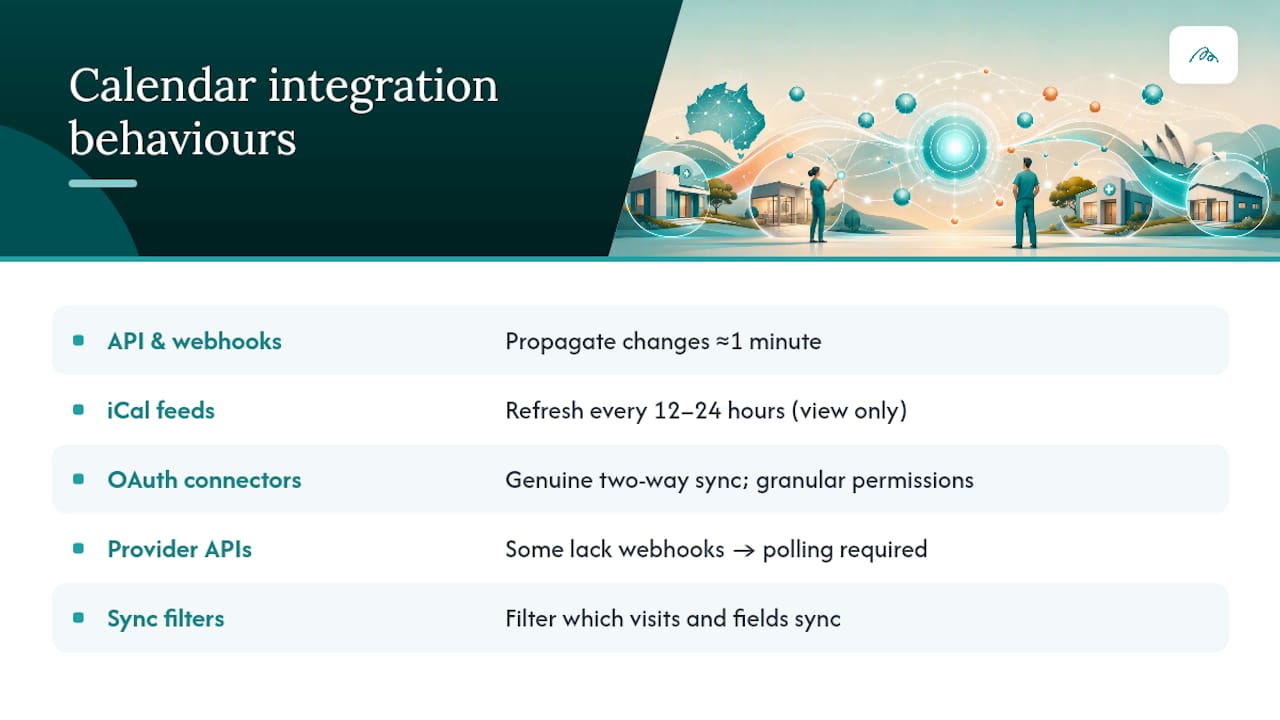
API and webhook connections, the kind most practice management platforms offer for Google and Outlook, propagate changes within about a minute of them happening. iCal subscription feeds, by contrast, often refresh only every 12 to 24 hours, which makes them unreliable for anything booked same‑day, and a fine fit only for viewing a rough weekly overview.
OAuth‑based connectors are worth prioritising over basic iCal links wherever your practice software supports them, because they support genuine two‑way sync and give you granular permission control, helping you sécurisez vos rendez-vous. Watch for provider‑side limits too: some practice APIs don’t support webhooks at all, which forces integrations to poll for changes on a schedule designed around that platform’s rate limits rather than pushing updates instantly.
Most connectors also let you filter which visits sync and which fields travel with them, by provider, by practice, or by visit type. Use those filters aggressively rather than syncing everything by default.
Privacy, security and staying inside APP 11
Calendar sync moves patient‑adjacent data outside your practice management system, which puts it squarely inside your privacy obligations. APP 11 requires reasonable technical and organisational steps to protect personal information, and to destroy or de‑identify it once it’s no longer needed.
In practice, that translates into a short set of defaults every clinic should apply:
-
Expose busy/free status only on any calendar shared outside your core clinical system.
-
Turn off patient name and clinical notes fields in the sync configuration; a generic “Appointment” label carries the same scheduling value with none of the exposure.
-
Use selective sync filters so a practitioner working across multiple clinics doesn’t leak one practice’s bookings into another’s calendar view.
-
Keep an audit log of which calendars are connected, who authorised the connection, and when tokens were issued or revoked.
-
Review retention settings regularly. Synced events left sitting on an external calendar after a token is revoked don’t disappear automatically, disconnecting a calendar integration stops future syncing but rarely deletes events already created, so cleanup needs to be a deliberate step, not an assumption.
Clinics building out a fuller privacy framework around this should read Meddle’s guide to meeting the Australian Privacy Principles, and pair it with a clear data retention policy so synced calendar data doesn’t outlive its purpose.
Rollout checklist: best practices before you switch it on
A calendar sync rollout succeeds or fails on governance, not on the software itself. Before you flip the switch clinic‑wide, work through this:
-
Assign a single owner for the rollout, and define who signs off before sync goes live for a new practitioner.
-
Pilot with a small group for two to four weeks before opening it up to the whole practice.
-
Set busy‑only visibility as the default for anything synced externally, not an apt‑in.
-
Add a 10 to 15 minute buffer around synced blocks to absorb the lag inherent in any polling‑based connection.
-
Confirm clinic‑booking precedence is documented, so staff know which system wins in a genuine clash.
-
Write a one‑page guide for practitioners covering what gets shared, what doesn’t, and how to raise a problem.
-
Schedule a monthly check of failed syncs and token expiries rather than waiting for a practitioner to notice a missed booking.
Pro Tip: Put the buffer and the precedence rule in writing before launch. Verbal agreements about “who wins” evaporate the first time two bookings actually clash.
For clinics working through referral relationships alongside scheduling, Meddle’s guide to Australian security controls for patient records is a useful companion to this checklist.
Troubleshooting a sync that’s gone quiet
Start with the last successful sync timestamp, most connectors log it, and a stale timestamp usually points to an expired OAuth token or a revoked consent that needs re‑authorisation. If the timestamp looks current but a booking still didn’t appear, check whether you’re dealing with a polling delay rather than a genuine failure: platforms without webhook support update on a schedule, not the instant something changes, so a five or ten minute gap can be entirely normal.
Rate‑limit errors show up as a batch of failed syncs clustered together, usually because too many events tried to sync at once. Space out bulk backfills, and when you do need to backfill missed events, do it in small batches and manually check for duplicate entries before trusting the result.
How Meddle applies these safeguards to matching and booking
Meddle’s AI‑powered matching platform connects patients to allied health practitioners by discipline, location and the capacity each clinician has shared, then routes the referral, and the clinic confirms the booking. That follows the same principle laid out above: the matching engine works from the capacity a clinician chooses to share, not a raw calendar feed, so appointment titles, patient names and clinical notes stay inside the clinic’s own system.
Because the clinic confirms each booking in its own system, Meddle doesn’t need to write patient details onto calendars the clinic doesn’t fully control. For a clinic, that means the admin reduction benefits of automated matching and referral routing arrive without that privacy trade‑off.
What a real rollout taught me about calendar sync
Start small. The clinics that get calendar sync right run a pilot with two or three practitioners, not the whole team, and they fix problems quietly before anyone else notices them.
Clinician buy‑in matters more than the software choice. Enforce one simple rule from day one: personal events go in as “Busy,” nothing else, no exceptions. And expect resistance. Not every practitioner will hand over write access to their personal calendar, and pushing that fight isn’t worth it. A read‑only pull, with clinic bookings kept as the source of truth, gets you most of the benefit without the argument.
— Taylor
How Meddle fits alongside your calendar sync
Most clinics patch together a mix of manual re‑entry, static iCal links, and hope. Meddle reduces that patchwork on the referral side: it matches patients by discipline, location and the capacity each clinician has shared, routes the referral, and leaves the booking to be confirmed in the clinic’s own calendar. It’s designed specifically for allied health, not retrofitted from a generic booking tool, and it works alongside your practice software.
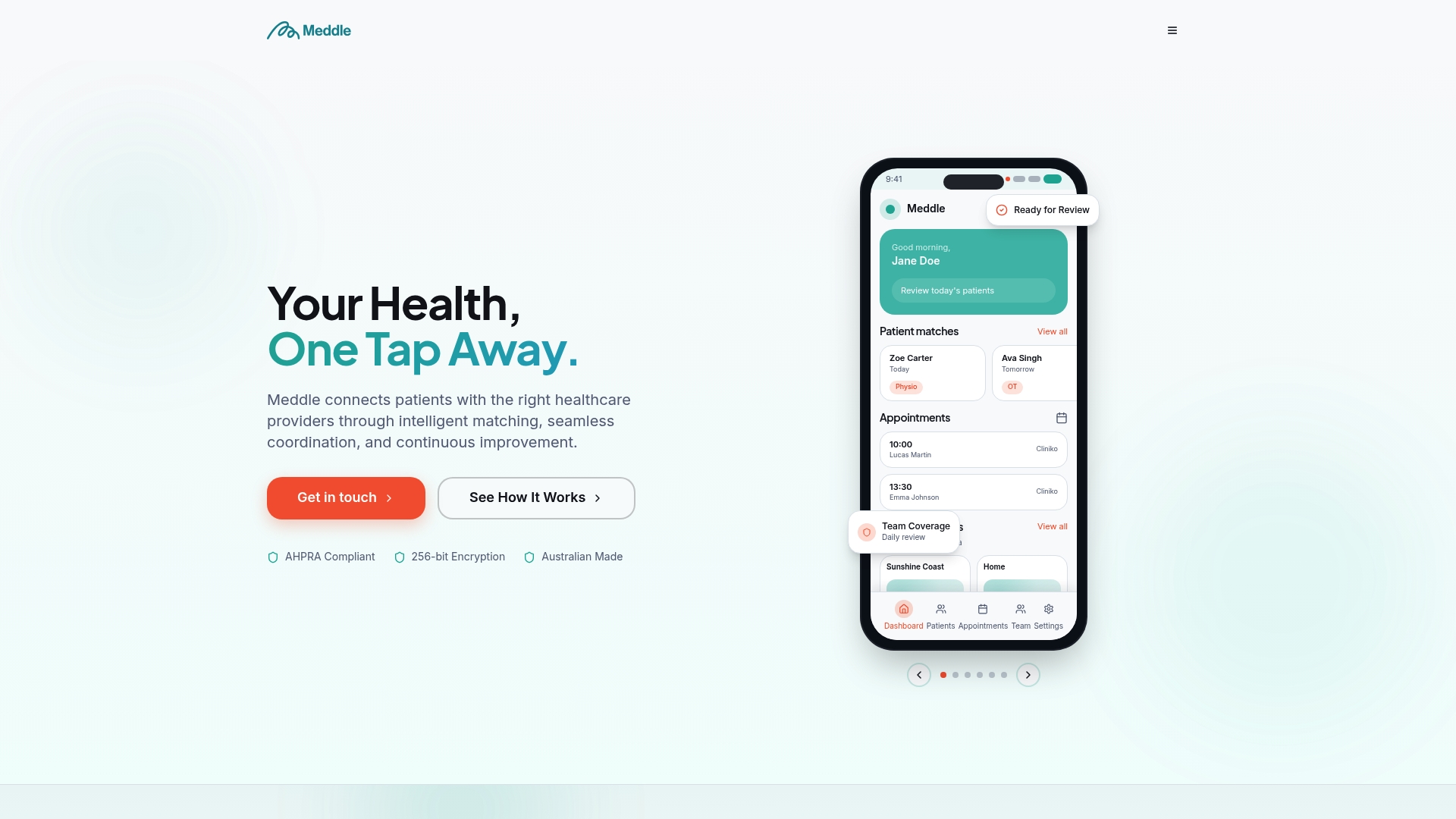
If your clinic is still juggling calendars by hand, or living with the lag of a basic iCal feed, it’s worth seeing how the clinic‑facing rollout and ROI tools work in practice. Because Meddle works from the capacity each clinician chooses to share rather than a raw calendar feed, it doesn’t add another place where patient details sit on an external calendar, which supports your APP 11 obligations rather than adding to them. Book a demo through Meddle and see how a free 30-day pilot could run in your own clinic.
Where to check the fine print
For the compliance detail behind this guide, go to the OAIC’s APP 11 guidance on securing personal information, the FHIR Schedule resource for how schedules and slots are modelled, and your practice software’s own integration documentation for exact sync behaviour.
Sources
FAQ
What is the best calendar sync service for a healthcare clinic?
The best option supports two‑way OAuth sync with field filtering, rather than a static iCal feed, so bookings update within minutes and patient details stay out of external calendars. Meddle avoids most of this by matching against the capacity each clinician has shared rather than syncing calendar contents; the clinic confirms each booking in its own system.
What does calendar sync actually do?
It keeps appointment times consistent across two or more calendar systems, automatically blocking booked time so the same slot can’t be double‑booked in a different system.
How do I get my calendar to sync automatically?
Connect your practice management system to Google, Outlook, or Apple Calendar using its built‑in OAuth integration, choose two‑way sync where available, and set clinic‑booking precedence as the default conflict rule.
What is the best calendar app for nurses managing shift and appointment overlap?
There’s no single best app. What matters is that whichever calendar a nurse uses personally syncs as read‑only busy time into the rostering or scheduling system, so shift and appointment clashes get caught automatically rather than discovered on the day.
Why does my calendar sync seem slow or delayed?
You’re likely on an iCal feed, which typically refreshes every 12 to 24 hours, rather than a real‑time API or webhook connection; switching to an OAuth‑based two‑way sync fixes most delay issues.